
The WordPress dashboard is the first screen you see after logging in, and out of the box it’s crowded: WordPress news, a Quick Draft box, activity feeds, and a widget from almost every plugin you install. For you, that’s noise. For your clients, it’s confusing.
In this guide, you’ll learn three ways to remove WordPress dashboard widgets: a quick one for yourself, a no-code one for every user on the site, and a code snippet for developers.
Which Widgets Come With WordPress?
A fresh WordPress install shows these dashboard widgets:
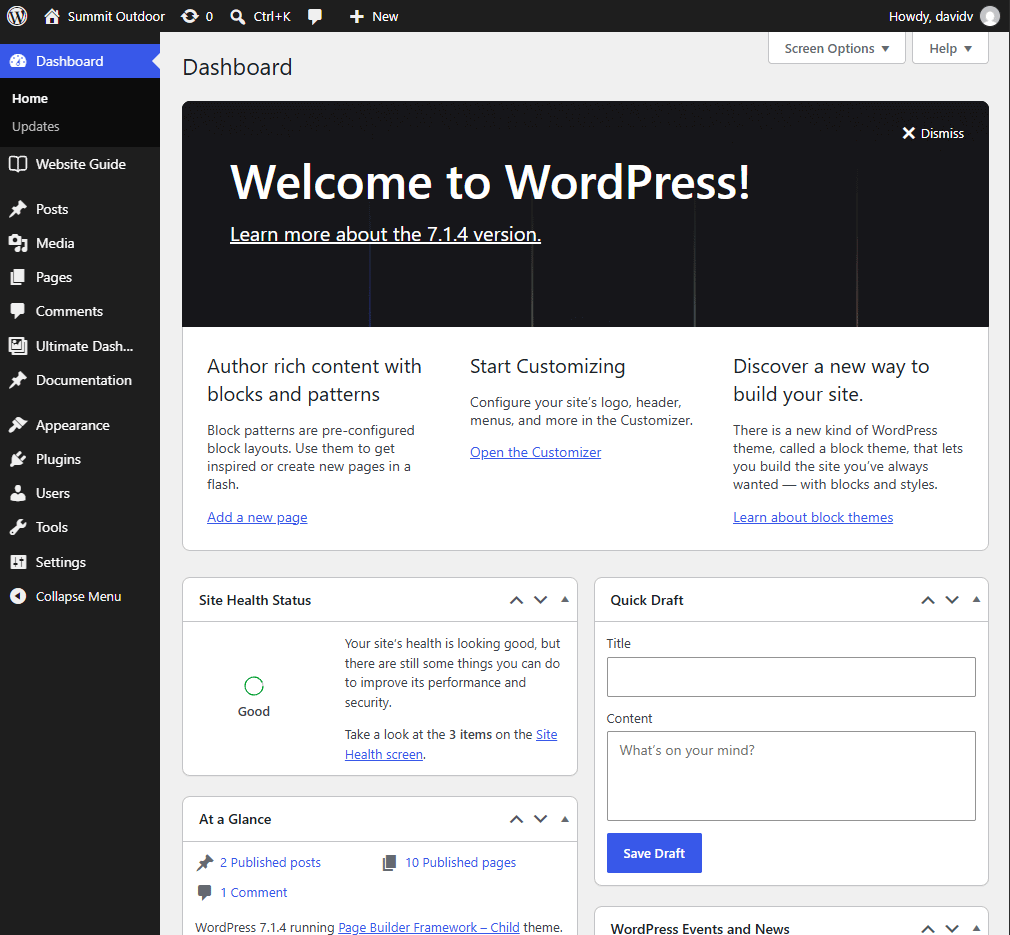
- Welcome: the large panel at the top with links to get started.
- At a Glance: the number of posts, pages and comments, plus your WordPress version.
- Activity: recently published posts and the latest comments.
- Quick Draft: a small form to jot down a new post.
- WordPress Events and News: upcoming WordPress meetups and news from WordPress.org.
- Site Health Status: a summary of your site’s health checks.
On top of those, many plugins add their own. SEO plugins, page builders, shop plugins and security plugins often put a widget on the dashboard, usually with stats, news or an upgrade offer.
Method 1: Hide Widgets With Screen Options (Just for You)
The quickest way is built into WordPress. On the dashboard, click Screen Options at the top right and untick the widgets you don’t want to see.
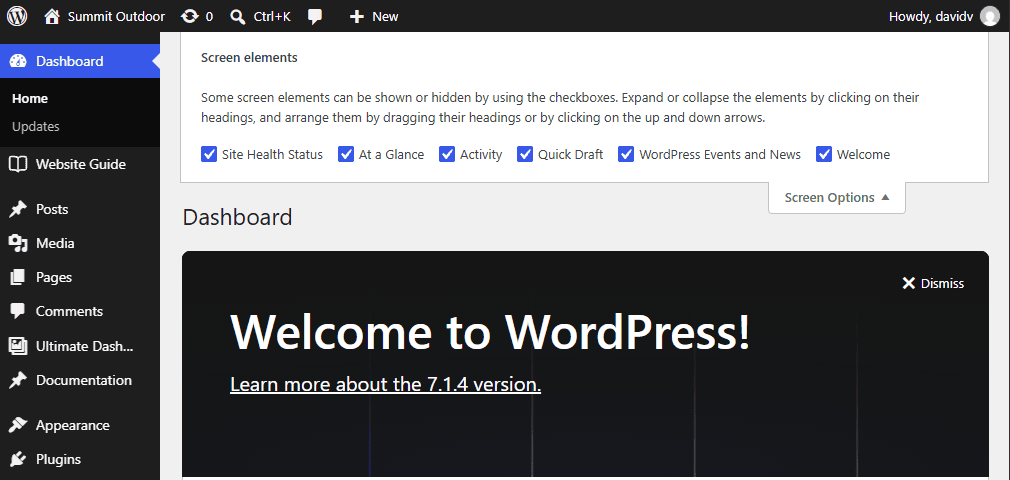
This is fine for your own account, but it has two limits:
- It only applies to your user account. Every other user still sees all widgets.
- Anyone can tick the boxes again, so it’s not a way to clean up the dashboard for clients.
Method 2: Remove Widgets for All Users With Ultimate Dashboard (No Code)
To remove widgets for everyone, use the free Ultimate Dashboard plugin.
- Go to Plugins > Add New, search for “Ultimate Dashboard”, then install and activate it.
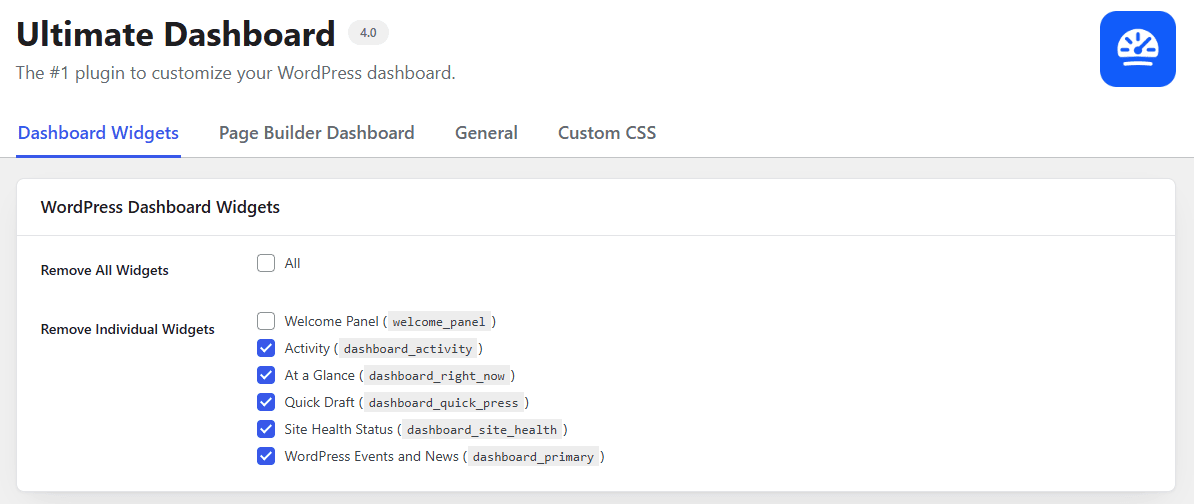
- Go to Ultimate Dash… > Settings and open the Dashboard Widgets tab.
- To clear the dashboard completely, tick Remove All Widgets. To keep some, tick only the widgets you want to remove under Remove Individual Widgets, including the Welcome panel.
- Click Save.
The widgets are now gone for every user on the site. To remove widgets that other plugins add, like those from SEO or shop plugins, use the 3rd Party Widgets section, which is part of Ultimate Dashboard PRO.
While you’re in the settings, two more free options help clean up the admin area: Remove Help Tab and Remove Screen Options Tab in the General tab.
Method 3: Remove Widgets With Code
If you prefer code, you can remove widgets with the remove_meta_box() function. Add this to your child theme’s functions.php file or a small custom plugin:
add_action( 'wp_dashboard_setup', function () {
	remove_meta_box( 'dashboard_right_now', 'dashboard', 'normal' );   // At a Glance
	remove_meta_box( 'dashboard_activity', 'dashboard', 'normal' );    // Activity
	remove_meta_box( 'dashboard_site_health', 'dashboard', 'normal' ); // Site Health Status
	remove_meta_box( 'dashboard_quick_press', 'dashboard', 'side' );   // Quick Draft
	remove_meta_box( 'dashboard_primary', 'dashboard', 'side' );       // WordPress Events and News
}, 999 );

// Remove the Welcome panel.
remove_action( 'welcome_panel', 'wp_welcome_panel' );
To remove a widget from another plugin, you need its ID. Right-click the widget, choose Inspect, and look for the id of the widget’s outer box. The trade-off: every change means editing code, and the snippet is tied to your theme unless you put it in a plugin.
Which Method Should You Use?
| Screen Options | Ultimate Dashboard | Code | |
|---|---|---|---|
| Applies to | Only you | All users | All users |
| Users can undo it | Yes | No | No |
| Plugin widgets | Yes | PRO | Yes, with the widget ID |
| Coding needed | No | No | Yes |
Replace the Clutter With Something Useful
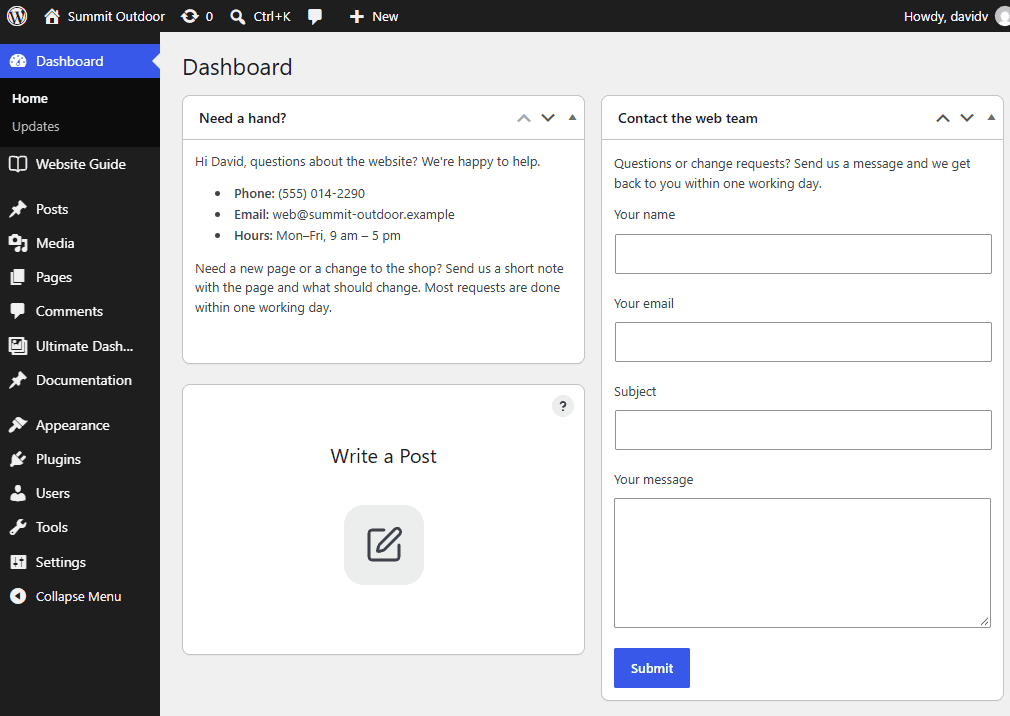
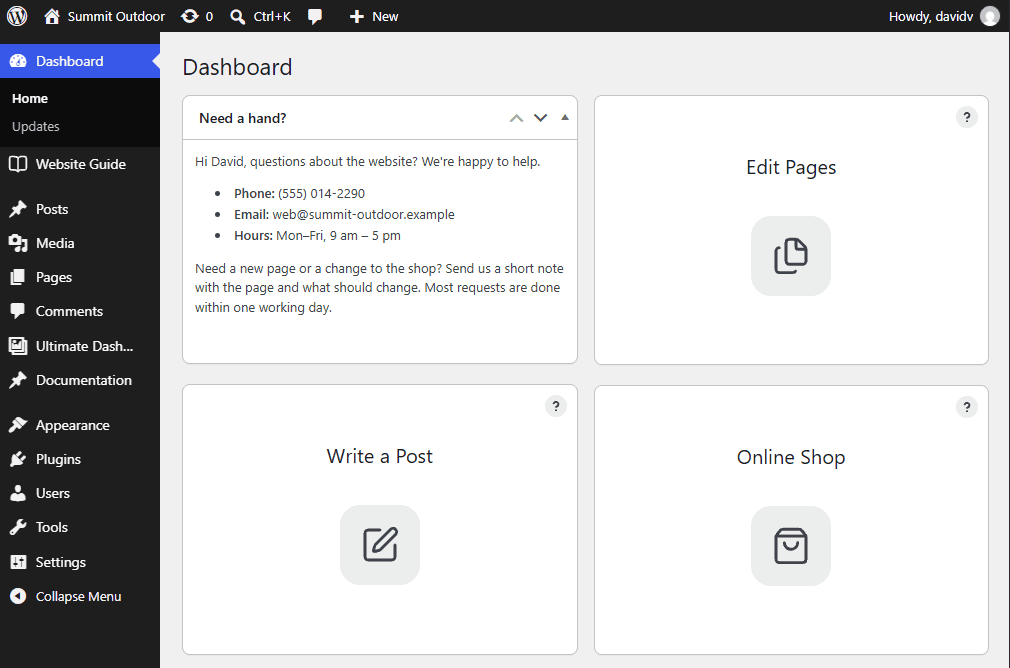
An empty dashboard is better than a cluttered one, but you can do even better: add your own widgets with your contact details, links to the most-used screens or a short tutorial video. Here’s how to create a custom WordPress admin dashboard, step by step.
Frequently Asked Questions
Does removing dashboard widgets speed up WordPress?
A little. Some widgets, like WordPress Events and News, load data from outside your site, so removing them can make the dashboard itself load faster. It doesn’t affect the speed of your website for visitors.
Will removed widgets come back after a WordPress update?
No. With Ultimate Dashboard or the code snippet, your settings stay in place after updates.
Can I remove widgets only for certain user roles?
With the code method, you can wrap the snippet in a check like if ( ! current_user_can( 'manage_options' ) ) to remove widgets only for non-administrators.
How do I get the removed widgets back?
In Ultimate Dashboard, untick them in the Dashboard Widgets settings and save. With code, remove the matching line from your snippet.
A Cleaner Dashboard in Two Minutes
Screen Options is fine for yourself. For client sites, the free Ultimate Dashboard plugin removes the clutter for everyone, with no code to maintain, and PRO takes care of the widgets other plugins add.
Leave a Reply