
Sometimes your clients need more than the default WordPress screens: a page with instructions for updating their site, a tutorial video, your support contact details, or links to the tools they use every day. The best place for that is right inside the WordPress admin area.
In this guide, you’ll learn how to create custom admin pages in WordPress, with their own menu item, without writing any code.
What Is a Custom Admin Page?
A custom admin page is a page that lives in the WordPress back end instead of on your website. It gets its own item in the admin menu, just like “Posts” or “Settings”, and only logged-in users can see it.
Some ideas for what to put on one:
- A client handbook: how to add a blog post, update a page or swap an image, with screenshots or videos.
- A support page: your contact details, support hours and a link to book a call.
- Video tutorials for the tasks your clients do most often.
- A link hub to analytics, the newsletter tool, the hosting account and other services they use.
- Internal guidelines for a team: writing style, image sizes, publishing checklist.
Step 1: Install Ultimate Dashboard
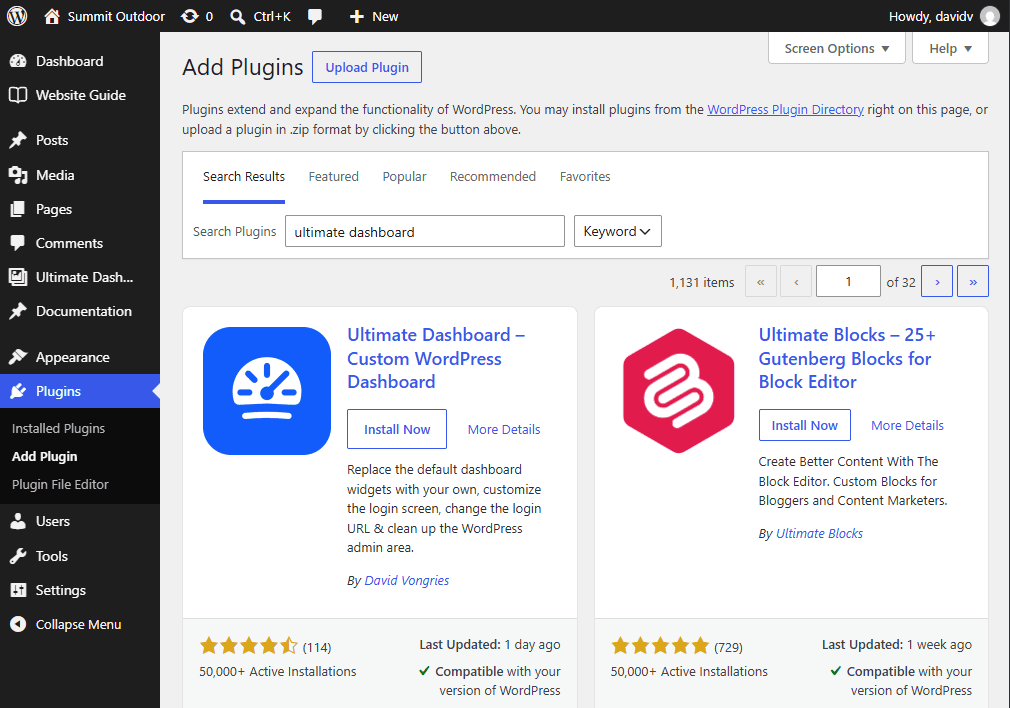
Custom admin pages are part of the free Ultimate Dashboard plugin. Go to Plugins > Add New, search for “Ultimate Dashboard”, then install and activate it.
Step 2: Create a New Admin Page
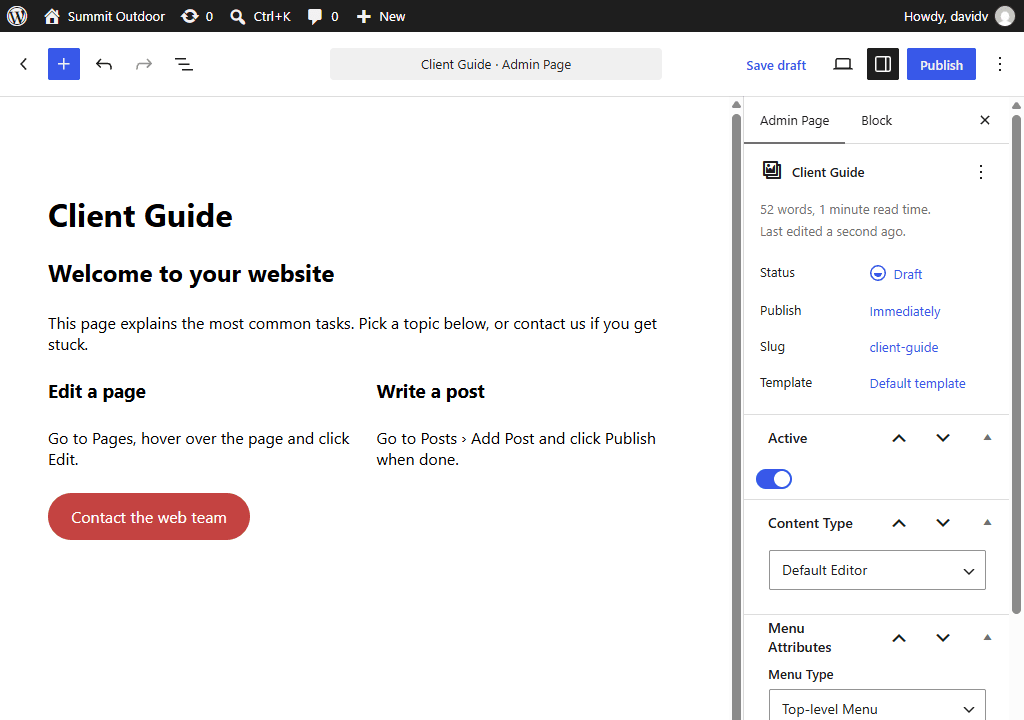
Go to Ultimate Dash… > Admin Pages and click Add New. Give your page a title. That’s also the name that shows up in the admin menu, so keep it short, like “Help” or “Support”.
Step 3: Choose How to Build the Content
Under Content Type, pick how you want to create the page:
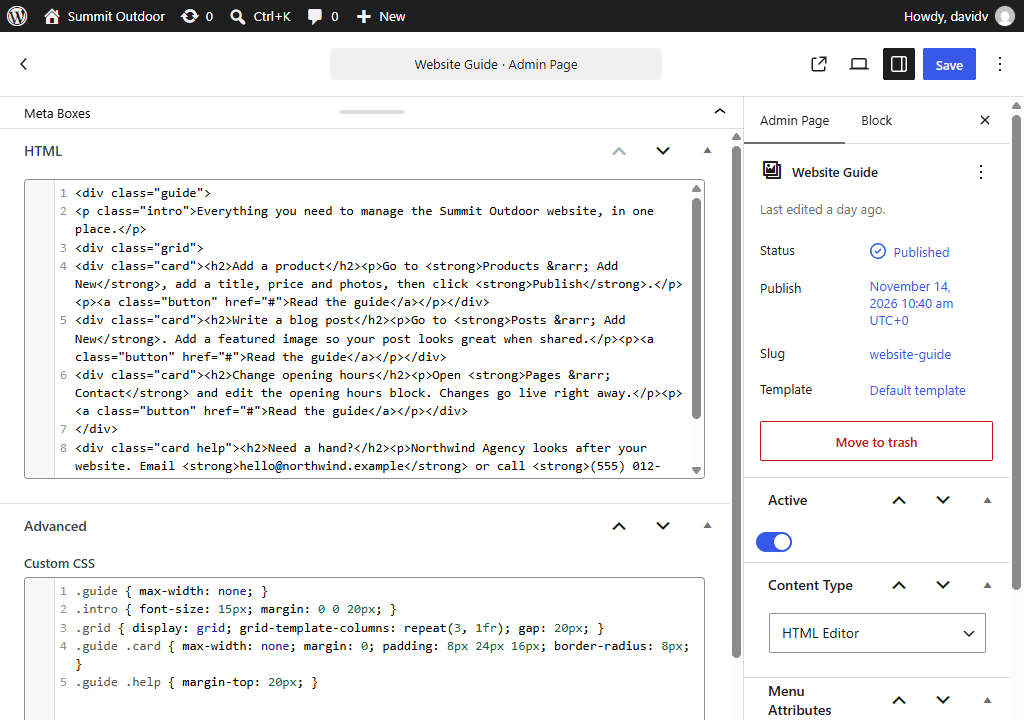
- Default Editor (free): the classic WordPress editor with text, images, links and lists.
- HTML Editor (free): write your own HTML, for full control over the layout.
- Block Editor (PRO): build the page with WordPress blocks, just like a regular page.
- Page builders (PRO): design the page with Elementor, Beaver Builder, Divi, Brizy, Bricks, Breakdance or Oxygen.
Learn more about the block editor, Divi, Bricks and Breakdance integrations.
Step 4: Set Up the Menu Item
In the Menu Attributes box, decide where the page shows up in the admin menu:
- Menu Type: a Top-level Menu item of its own, or a Submenu item under an existing menu, like Dashboard or Settings.
- Parent Menu: for submenu items, the menu it belongs to.
- Menu Order: the position in the menu. Lower numbers appear higher up.
- Menu Icon: the icon shown next to a top-level menu item.
Step 5: Fine-Tune the Display
Under Display Options, you can remove the page title, the default page margins and any admin notices from the page. That gives you a clean canvas, which is especially useful for pages built with a page builder. You can also add custom CSS that only applies to this page.
Step 6: Choose Who Can See It (PRO)
By default, the page is visible to everyone who can access the admin area. With Ultimate Dashboard PRO, you can restrict each admin page to specific user roles or users, for example to show a client handbook only to editors.
Step 7: Publish
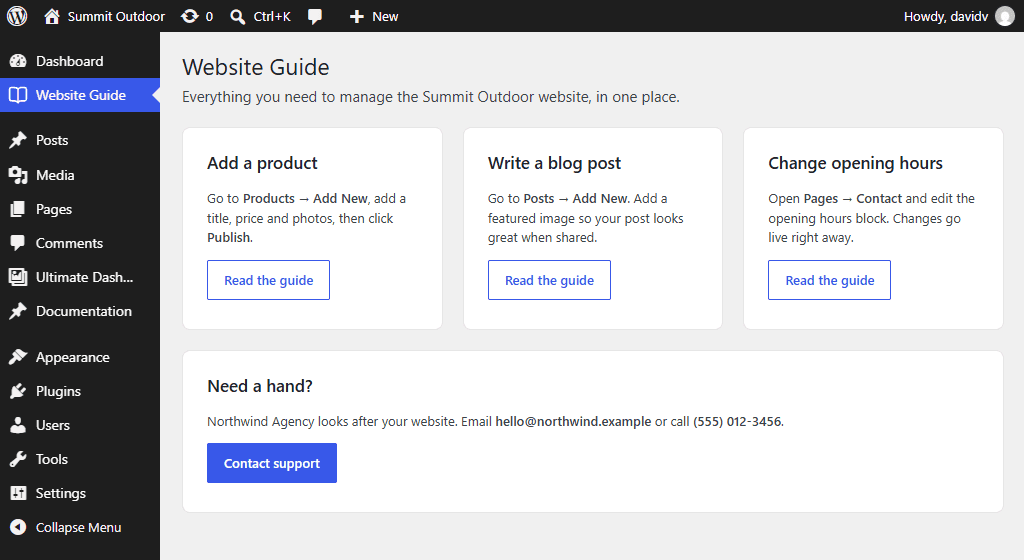
Click Publish. Your new page now shows up in the admin menu. You can switch admin pages on and off from the Admin Pages list at any time without deleting them.
Tips for Great Admin Pages
- Keep it short. Clients scan admin pages; they don’t read them. Use headings, lists and short videos.
- Put it where it’s needed. A “How to write a post” page fits nicely as a submenu item under Posts.
- Combine it with a dashboard widget. Link to your admin page from a custom dashboard widget, so clients find it right after logging in.
- Simplify the menu around it. Hide the admin menu items your clients don’t need, so your page stands out.
Frequently Asked Questions
Can visitors see custom admin pages?
No. Admin pages only exist in the WordPress back end, so only logged-in users with access to the admin area can see them.
Can I add an admin page without a plugin?
Yes, with the add_menu_page() function in PHP, plus a function that outputs the page’s HTML. That works for developers, but every content change means editing code. With a plugin, you edit the page like any other page.
Can my clients edit the admin pages?
Only users who can manage Ultimate Dashboard’s settings, which by default means administrators. Editors and other roles can only view them.
Is this feature free?
Yes. Creating admin pages with the default or HTML editor is free. The block editor, page builders and per-role visibility need PRO.
Make the Admin Area Work for Your Clients
A good custom admin page saves you support emails and makes your clients more confident with their website. Next, create a custom dashboard that links to it, or go all the way and white label WordPress for your clients.
Leave a Reply