
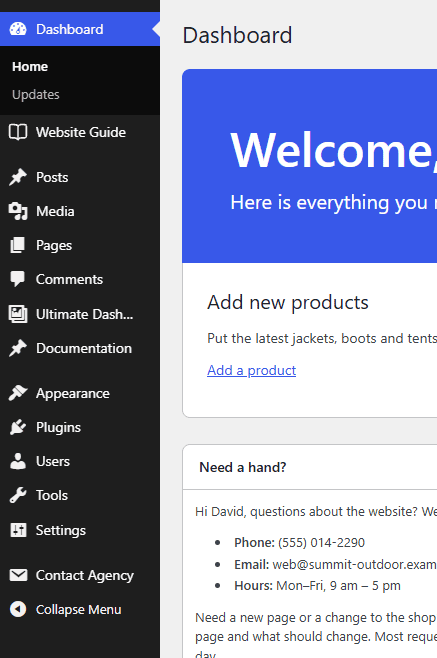
The WordPress admin menu shows a lot: Tools, Settings, Plugins, Appearance, plus a menu item for almost every plugin you install. For a client who just wants to write a blog post or update a page, that’s overwhelming, and it’s an open invitation to change things that break the site.
In this guide, you’ll learn how to hide admin menu items in WordPress for specific user roles or individual users, without code, and with a code snippet if you prefer.
Before You Start: Hiding Is Not the Same as Blocking
Hiding a menu item removes it from the menu, but the page behind it still works if someone types its address and their user role is allowed to use it. So hiding menu items is about a cleaner, simpler admin, not about security.
For real restrictions, give your client the right user role:
- Editor: can manage all posts, pages and comments, but not plugins, themes or settings. The right choice for most clients.
- Author: can write and publish only their own posts.
- Administrator: can do everything. Only give it to clients who really need it.
Then hide whatever is still confusing for that role. That combination gives you a simple and safe admin area.
Method 1: Hide Admin Menu Items With Ultimate Dashboard PRO (No Code)
The Admin Menu Editor in Ultimate Dashboard PRO lets you hide, rename, reorder and add menu items, for each user role or for a single user.
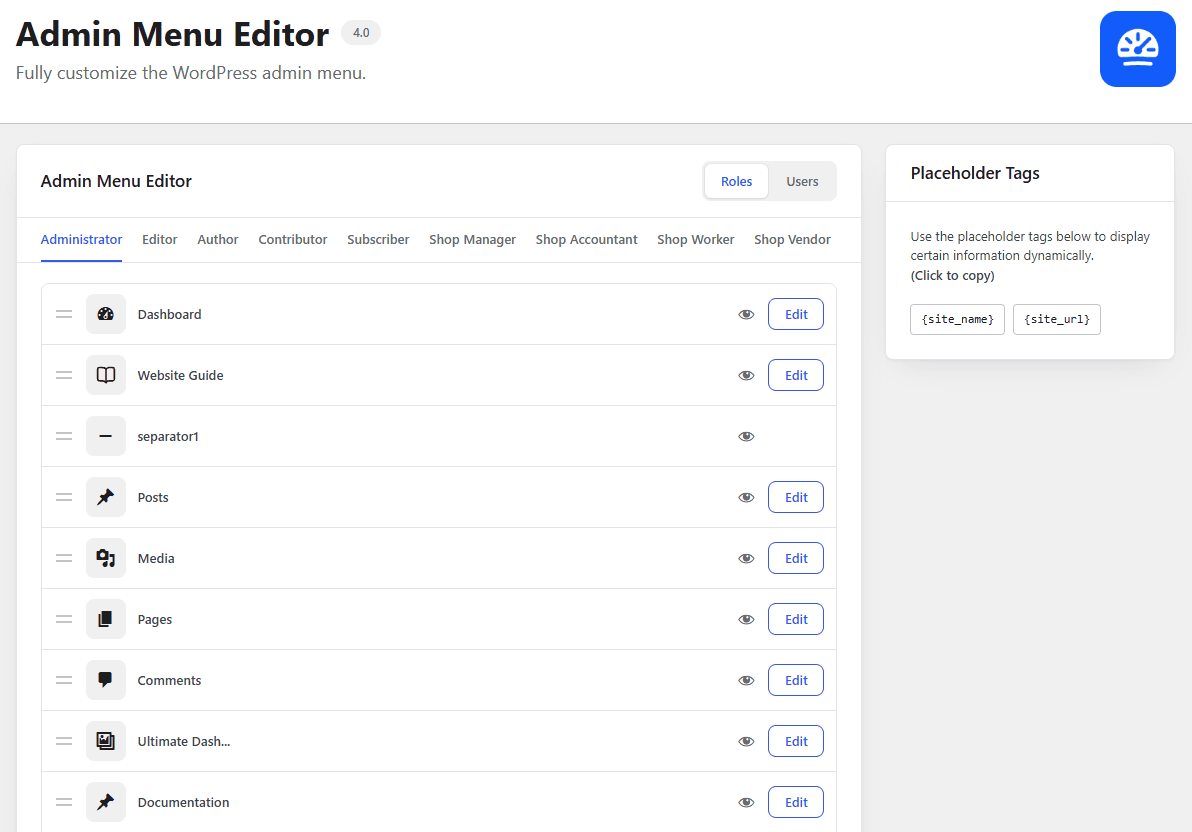
Step 1: Open the Admin Menu Editor
Install the free Ultimate Dashboard plugin and Ultimate Dashboard PRO, then go to Ultimate Dash… > Admin Menu Editor.
Step 2: Pick a User Role or a User
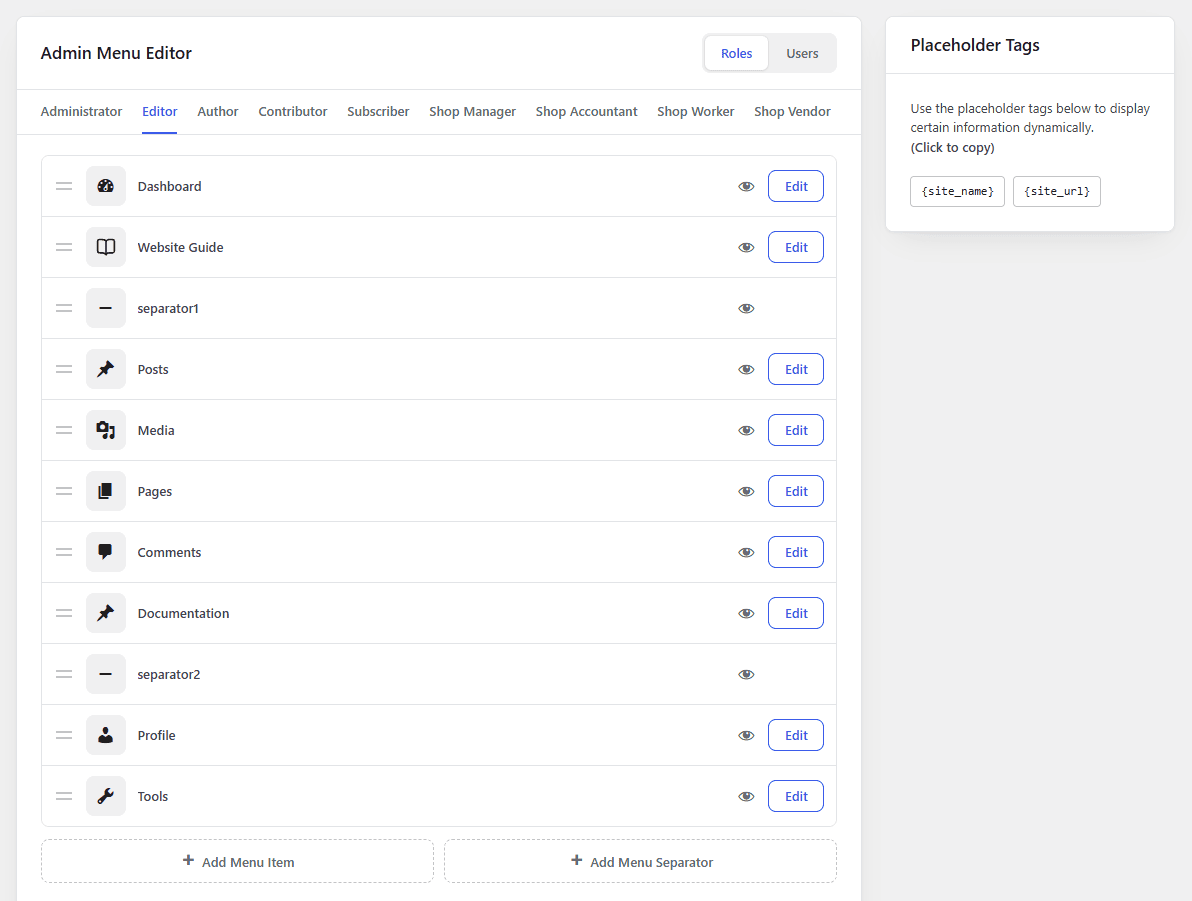
In the Roles tab, select the role you want to edit, for example Editor. To change the menu for one specific person instead, switch to the Users tab and select that user.
Step 3: Hide the Menu Items You Don’t Need
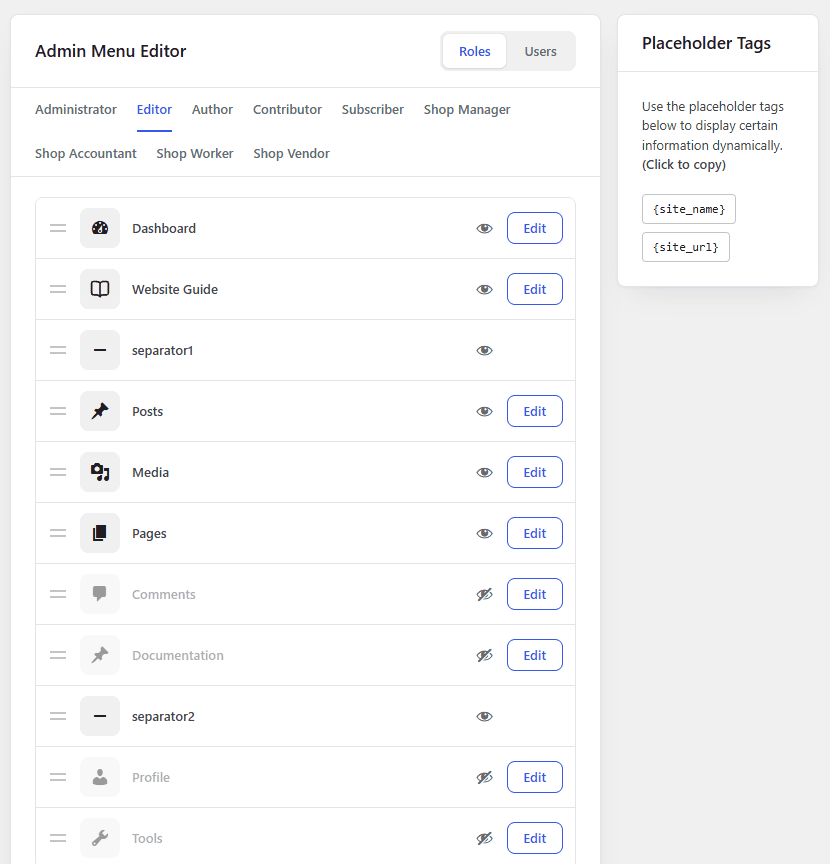
Click the eye icon next to a menu item to hide it. This also works for submenu items, so you can keep “Pages” but hide “Add New Page”, for example.
Step 4: Rename, Reorder and Add Items (Optional)
While you’re at it, you can make the menu clearer for your client:
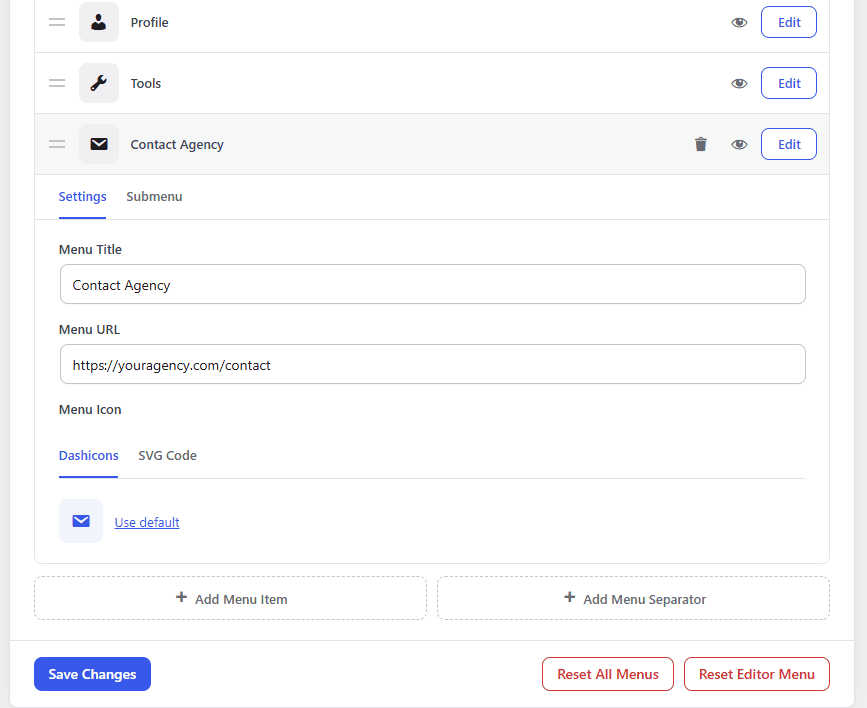
- Reorder items by dragging them, so the most-used ones are at the top.
- Rename items and change their icons, like “Posts” to “Blog” or “News”.
- Add your own menu items, like a “Contact Support” link to your agency.
Click Save Changes when you’re done. Log in as a user with that role (or use a user switching plugin) to see the result. Made a mistake? Each role can be reset to the WordPress default menu.
Method 2: Hide Admin Menu Items With Code
WordPress has two functions for this: remove_menu_page() for top-level items and remove_submenu_page() for submenu items. Add this to your child theme’s functions.php file or a small custom plugin:
add_action( 'admin_menu', function () {
	// Only for users who aren't administrators.
	if ( current_user_can( 'manage_options' ) ) {
		return;
	}

	remove_menu_page( 'tools.php' );                       // Tools
	remove_menu_page( 'edit-comments.php' );               // Comments
	remove_submenu_page( 'themes.php', 'themes.php' );     // Appearance > Themes
	remove_submenu_page( 'index.php', 'update-core.php' ); // Dashboard > Updates
}, 999 );
To hide a menu item from a plugin, you need its menu slug. Hover over the menu item and look at the link: the part after page= (or the file name) is what goes into remove_menu_page(). The downside: every change means editing code, and you can’t easily show different menus to different users.
What to Hide for Clients
Every site is different, but for a typical client with the Editor role, these are good candidates:
- Comments, if the site doesn’t use them.
- Tools, which clients rarely need.
- Menu items from SEO, caching and security plugins, where one wrong click can hurt the site.
- The Ultimate Dashboard menu itself, so clients can’t undo your white labeling.
And instead of hiding things, sometimes it’s better to add something: a menu item that leads to a custom admin page with instructions for your client.
Frequently Asked Questions
Does hiding a menu item stop users from accessing that page?
No. It removes the link, but the page still works for users whose role allows it. To block access, use a user role with fewer permissions, like Editor instead of Administrator.
Can I hide menu items for one user only?
Yes. In the Admin Menu Editor, use the Users tab to edit the menu for a single user. With code, you’d check the user ID instead of the capability.
Will hidden menu items come back when a plugin updates?
With Ultimate Dashboard PRO, no. Your settings stay. With code, they stay hidden too, unless the plugin changes its menu slug.
Can I hide menu items for administrators?
Yes, the Administrator role can be edited like any other. Be careful not to hide something you need yourself. You can always reset the menu for a role.
A Simpler Admin Menu for Your Clients
Combine the right user role with a cleaned-up menu, and your clients will find what they need without getting lost. For the full picture, see how to white label WordPress for clients, how to remove dashboard widgets and how to create a custom WordPress admin dashboard.
Leave a Reply