
Text widgets put a message on the WordPress dashboard: welcome your client, explain how the site works, or list your contact details. They’re free in Ultimate Dashboard and you write them with the familiar WordPress editor, including links, images and lists.
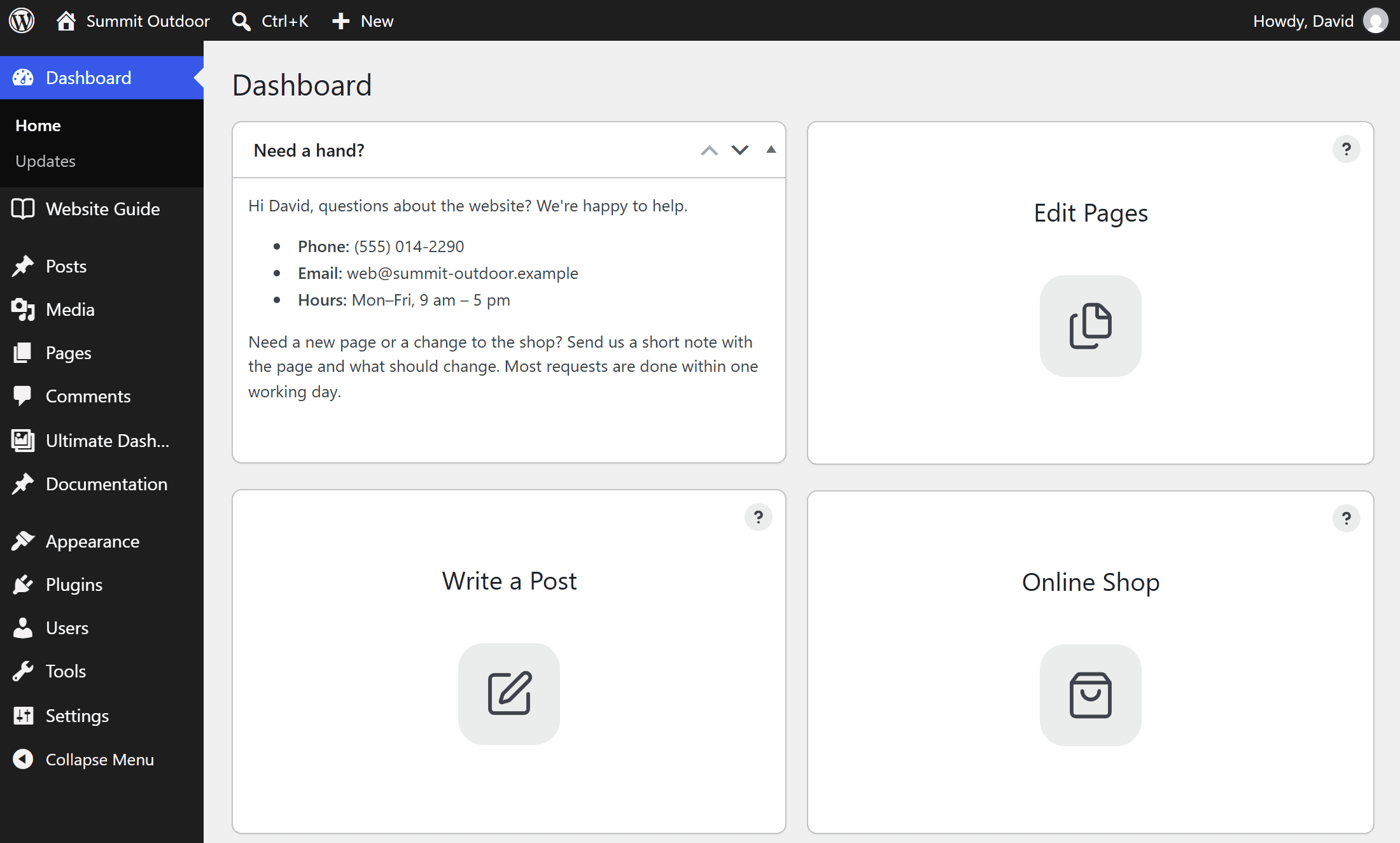
Create a text widget
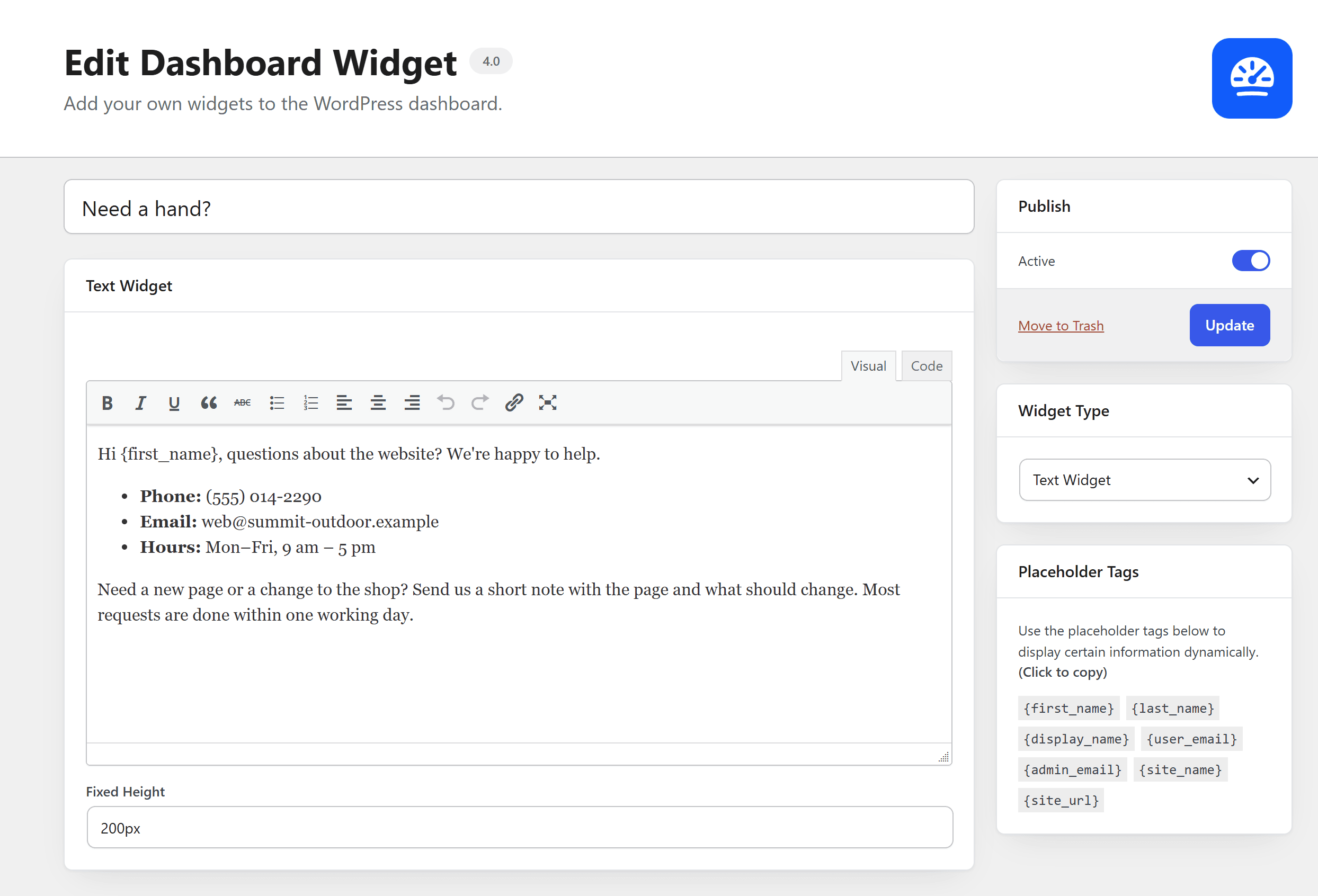
- Go to Ultimate Dash… → Add New.
- Enter a title and choose Text Widget as Widget Type.
- Write your text in the editor.
- Click Publish.
Match the height of other widgets
A text widget is as tall as its content. To line it up with your icon widgets, enter a Fixed Height, for example 200px.
Personalize it
Use placeholder tags like {first_name} or {site_name} to greet every user by name: “Welcome back, {first_name}!”. Shortcodes work too.