
When you activate Ultimate Dashboard for the first time, a short setup wizard opens. In a few clicks it sets up the basics: which features you want, a clean dashboard, a tidier admin area and a custom login URL. Everything it does can be changed later in the settings.
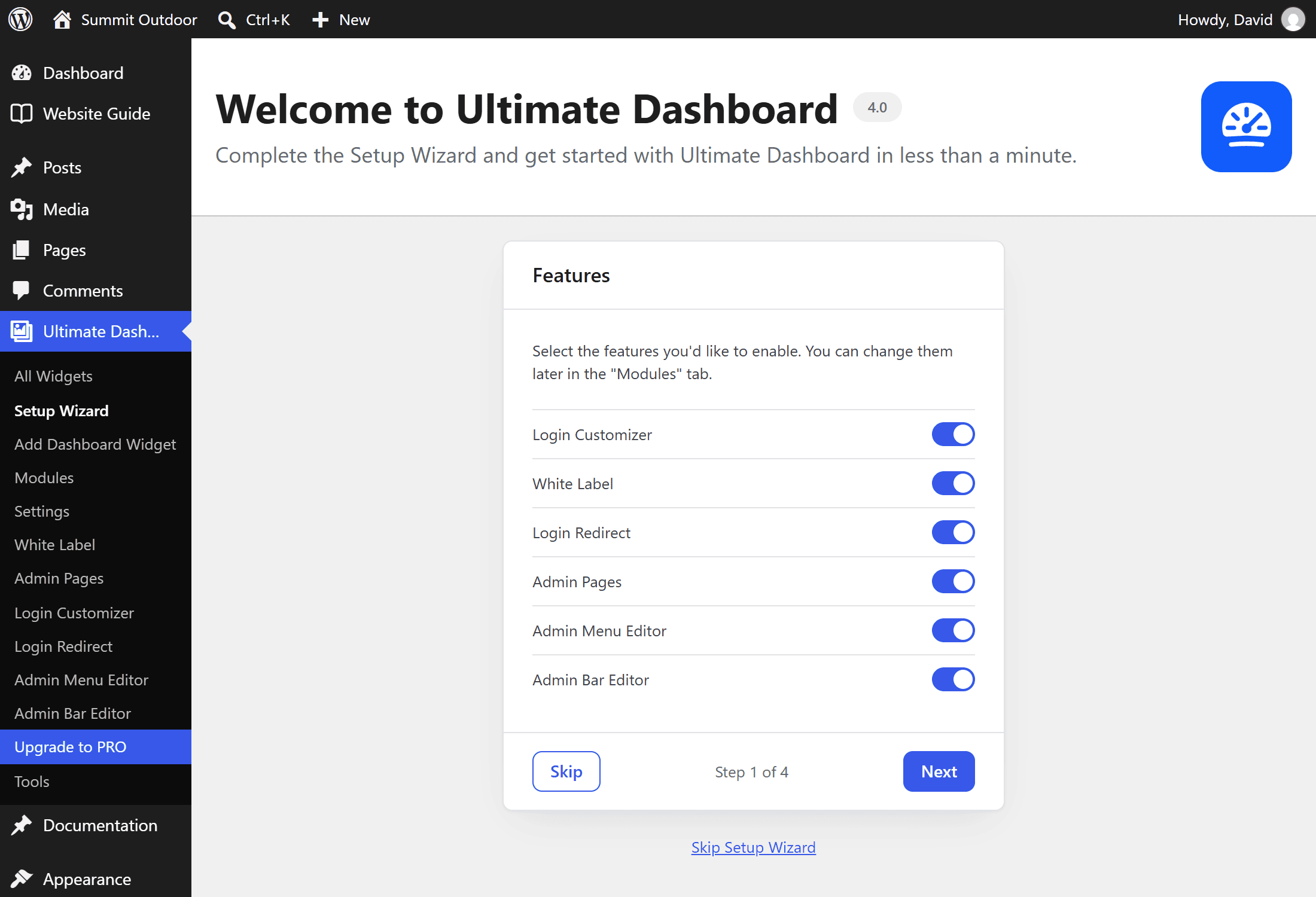
The steps
- Features: choose the modules you want to use.
- Dashboard Widgets: remove all default WordPress dashboard widgets, or pick single ones, including the welcome panel.
- General Settings: remove the Help and Screen Options tabs and hide the admin bar on the frontend for certain roles.
- Custom Login URL: move the login page from
wp-login.phpto an address of your choice. - Optional: Sign up for Ultimate Dashboard PRO.
Click Next to apply a step, or Skip to leave it as it is.
Skipped it? Open it again
Until you finish it, the wizard stays in the menu under Ultimate Dash… → Setup Wizard. Once it’s done, the menu item disappears. You can make all the same changes in the settings and on the Modules screen.
The wizard only shows on single sites without Ultimate Dashboard PRO.